How to Query Data in Google Sheets
Use the built in SQL-like Query Language

This article appeared first on freeCodeCamp's news publication.
I built a spreadsheet and wanted to display some of the data in a small table which would update based on the day of the week.
After some digging, querying seemed the best option to pull this off.
In this article, you'll learn several things about Google Sheets tables, functions, queries, data validation and formatting including:
- Creating a clean, usable data table.
- Creating a data validation drop down list
- Naming ranges for easier use and cleaner data management
- Querying basics including SELECT, WHERE and the TEXT() and TODAY() functions
- The funky syntax to reference cells within Google Sheet queries
- Where to go in the official docs for further information.
Google Sheets is Similar to SQL
Google Sheets indeed has a built in "Google Visualization API Query Language". Check out the docs here.
Some of the syntax is the same and much of the functionality is similar to SQL, so you should pick it up quickly if you are familiar with SQL at all.
I know but a little when it comes to SQL, but I was able to parse my way through some basic queries with little trouble.
In fact, the thing that gave me the most trouble was cell referencing syntax. And I hope this post can save you some head scratching that I went through today.

Setup Your Table
First things first: get all the data in a well organized table. This is sometimes the hardest part of any data analysis: simply getting the data in an orderly, usable format.
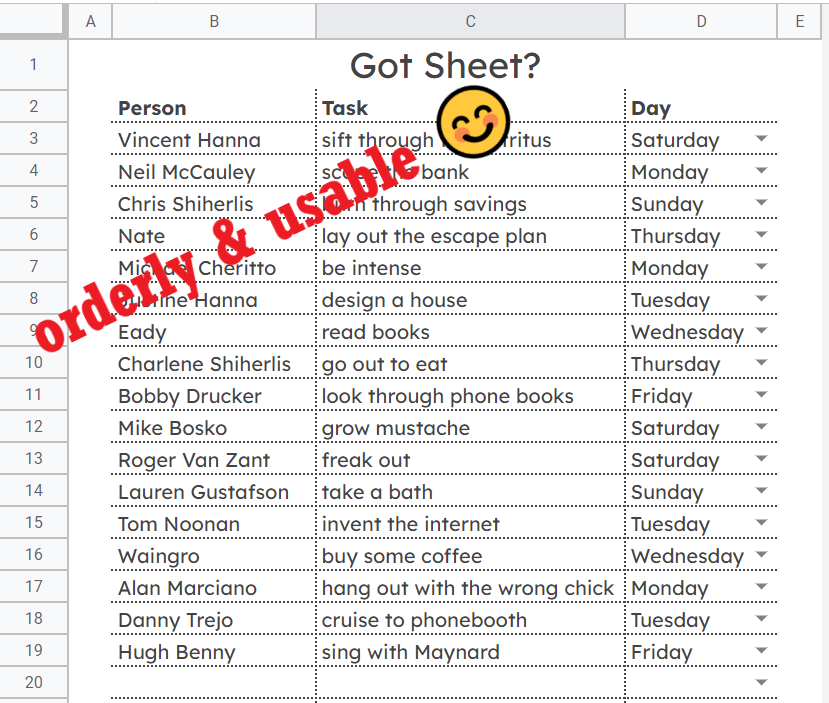
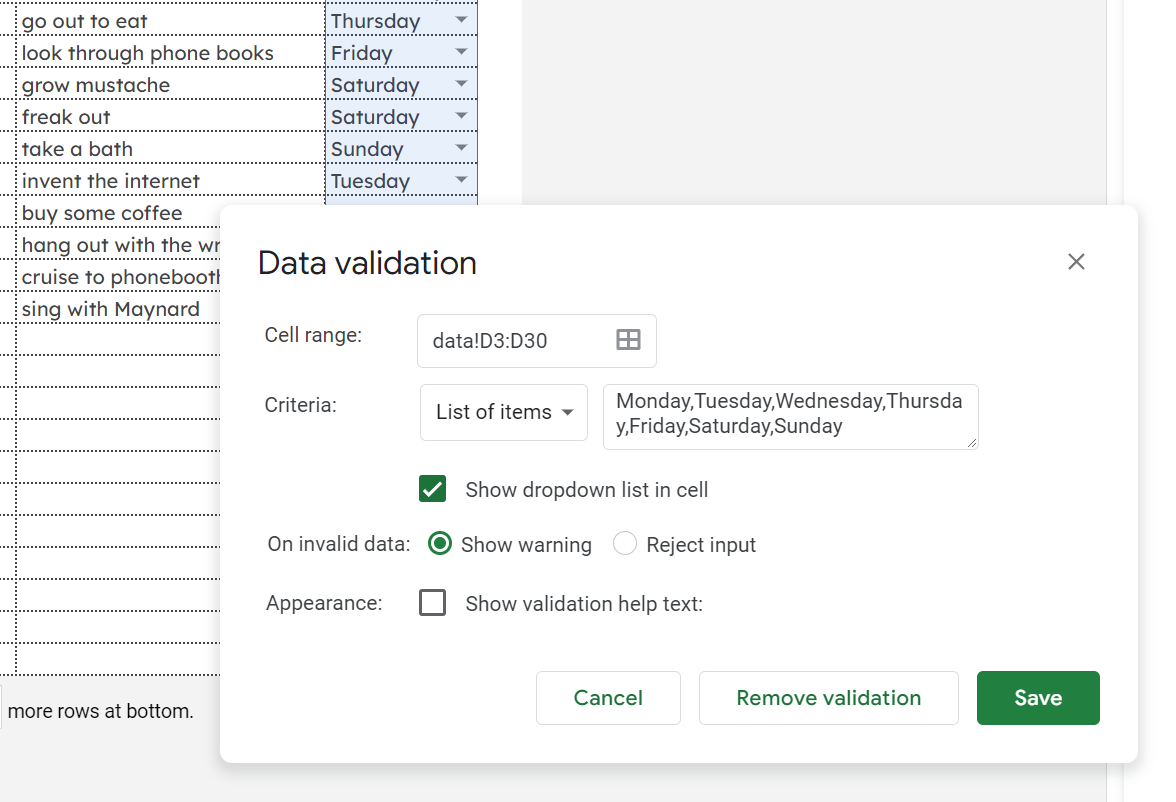
I used data validation for the days of the week to ensure I didn't have a typo in there since our query will depend on those days.
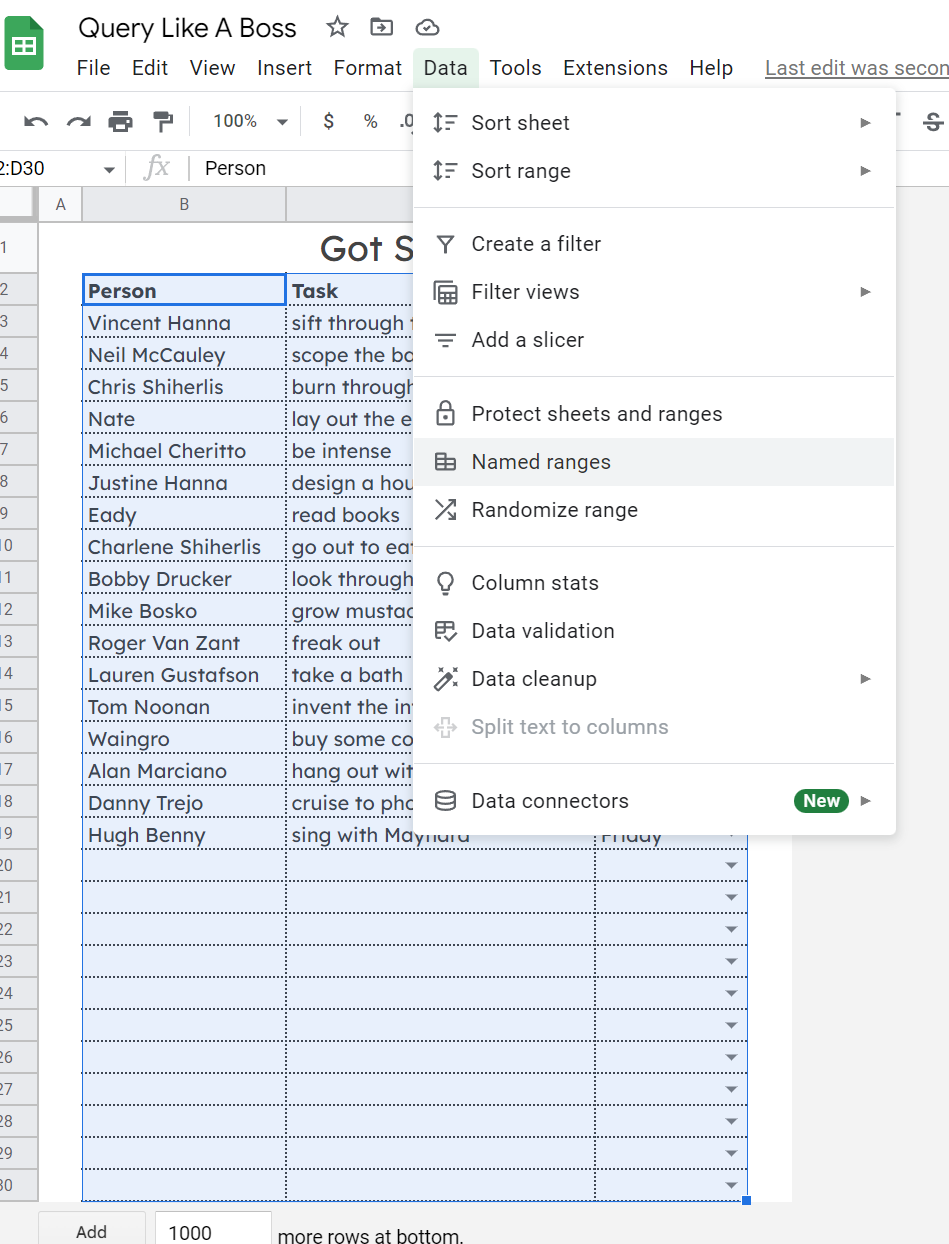
Create a Named Range
Select the entire table to create a named range. This will make things cleaner and easier in the next step. It's good practice to keep data as tidy as possible.
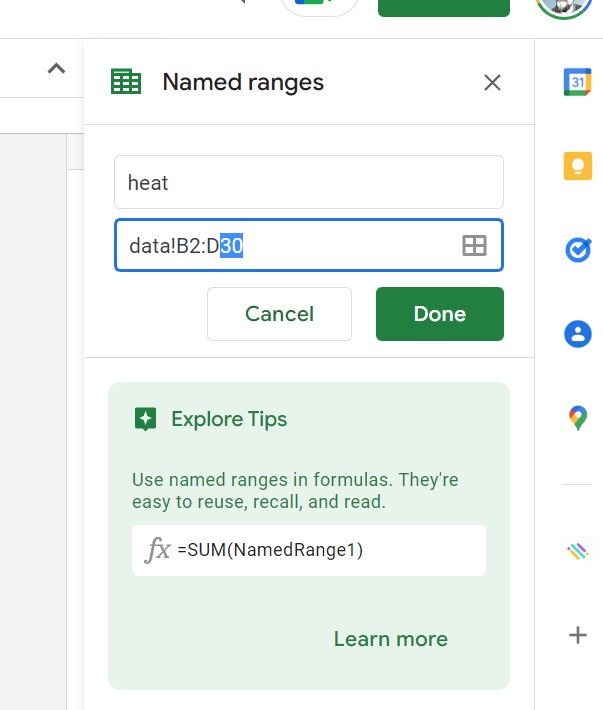
Confirm and name the range to save it.
How to Write the Query
Now, let's make another sheet to put our query into. I only need two columns for our data: one for the person and one for the task. Make room for more if your data requires it.
The first step requires a little trick to make the current day display when the sheet is loaded and for this to be used in our query.
There is a built-in =Today() function, but using it alone is not enough even when you change the formatting. They query won't recognize it as matching the days of the week text in our table.
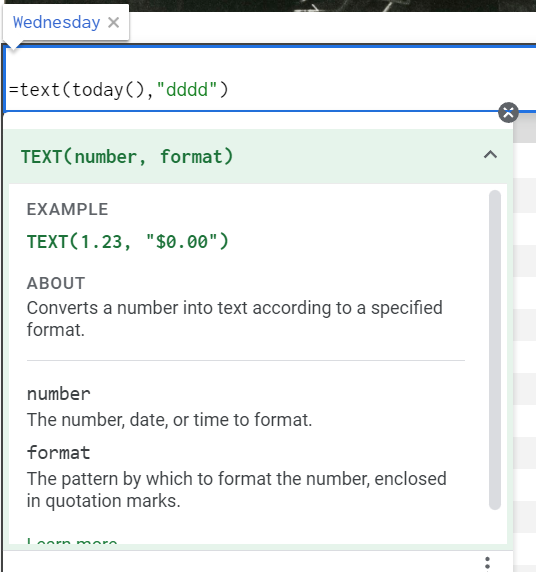
Instead, wrap the Today() function inside the Text() function as shown below. The Text() function accepts a number and a format as arguments. When we pass it Today(), it can convert that date number into text using the format "dddd". Neat, right? 😊
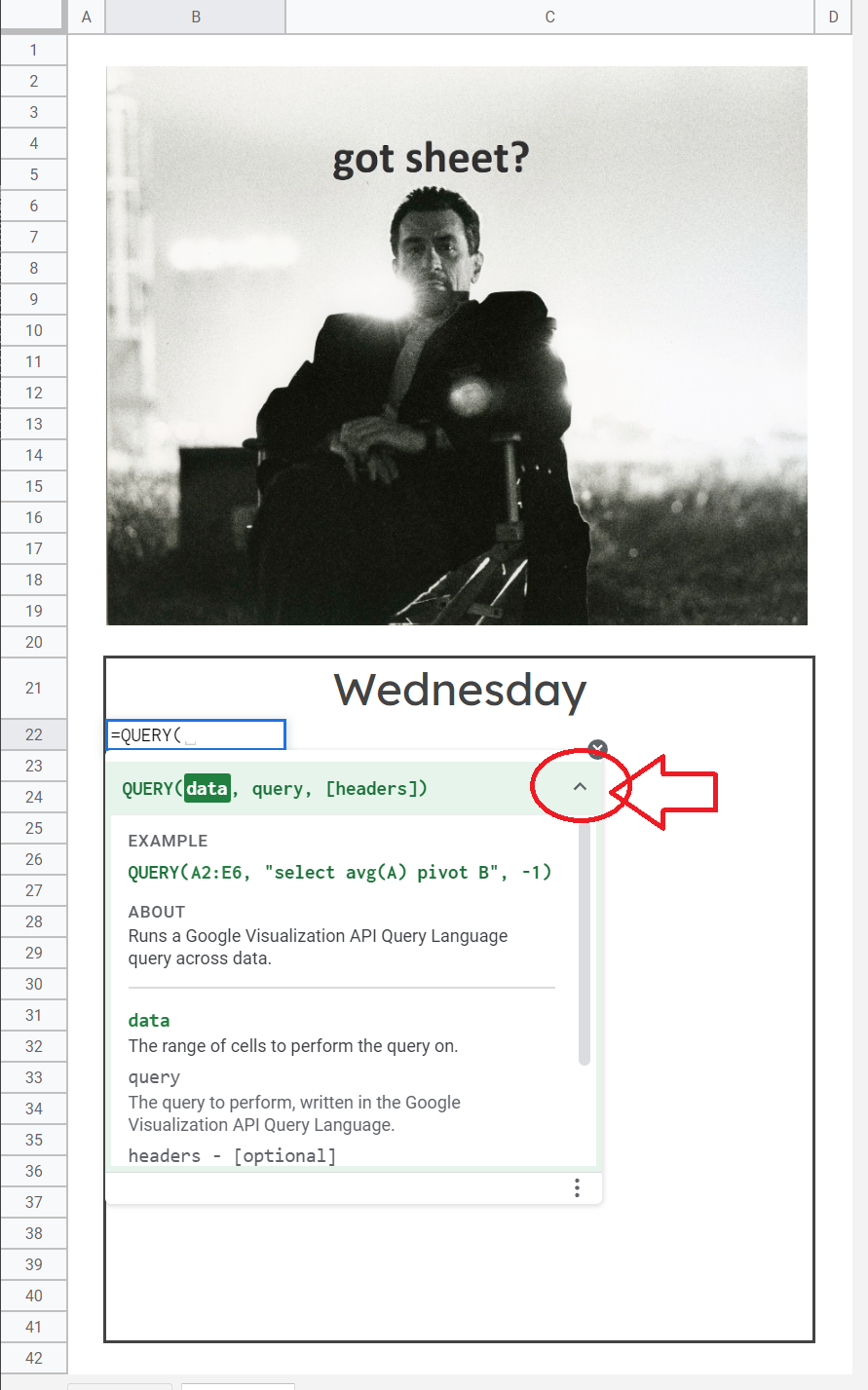
In Google Sheets, =QUERY is also a built in function. As you type it in the cell (B22 in my example) you can click the drop down arrow in the top right to get more information on the parameters accepted.
We'll select our data. Type the name of the range you created and it will automatically select that table.
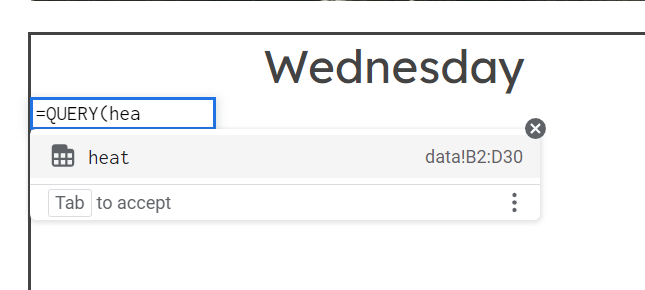
You can manually select the range for the table to query if you choose. But you want to be as awesome as possible, so use that named range! 🙌
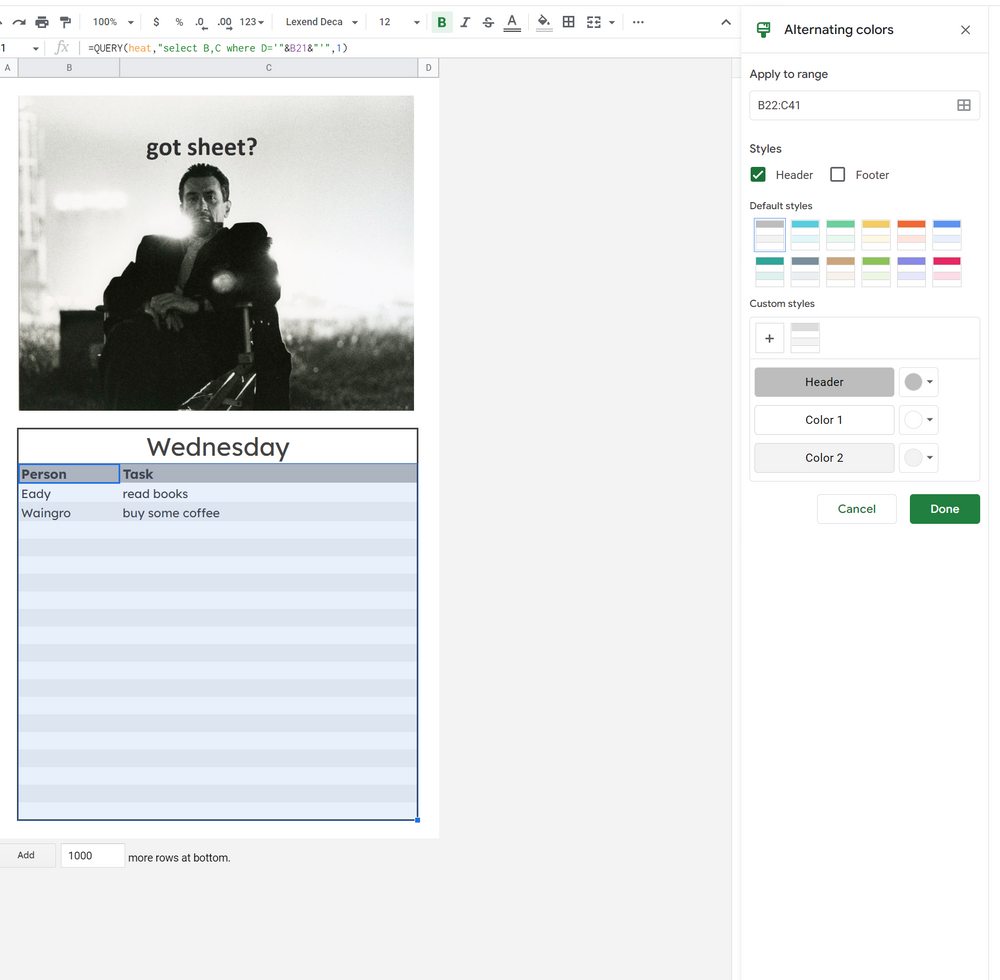
We want to select and return the first two columns (the names and tasks) in our data sheet based on the fourth column (the day of the week).
The query reads =QUERY(heat,"select B,C where D='"&B21&"'",1).
And yes, that nastiness with the single quotes, double quotes and ampersands is necessary for the conditional statement we are creating.
We're telling the query to match the D column in our data sheet with the value in B21 which is now text thanks to our previous formula manipulating the day of the week.
The syntax to match the text in the cell is gross, but it's just how you have to do it.
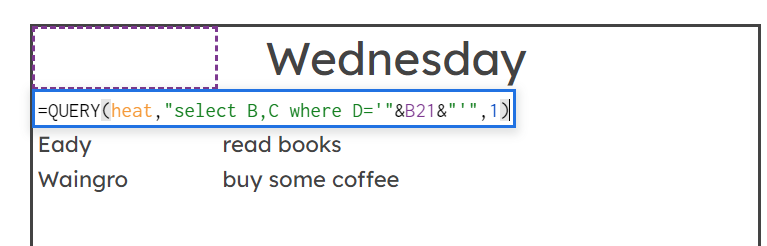
That last parameter 1) is letting the query know that there is one row of headers to display (name, task).
And, voilà! We've got ourselves an automatically updating task list based on the current day of the week. All that's left is cleaning up the final result! 🎁
##Official Examples
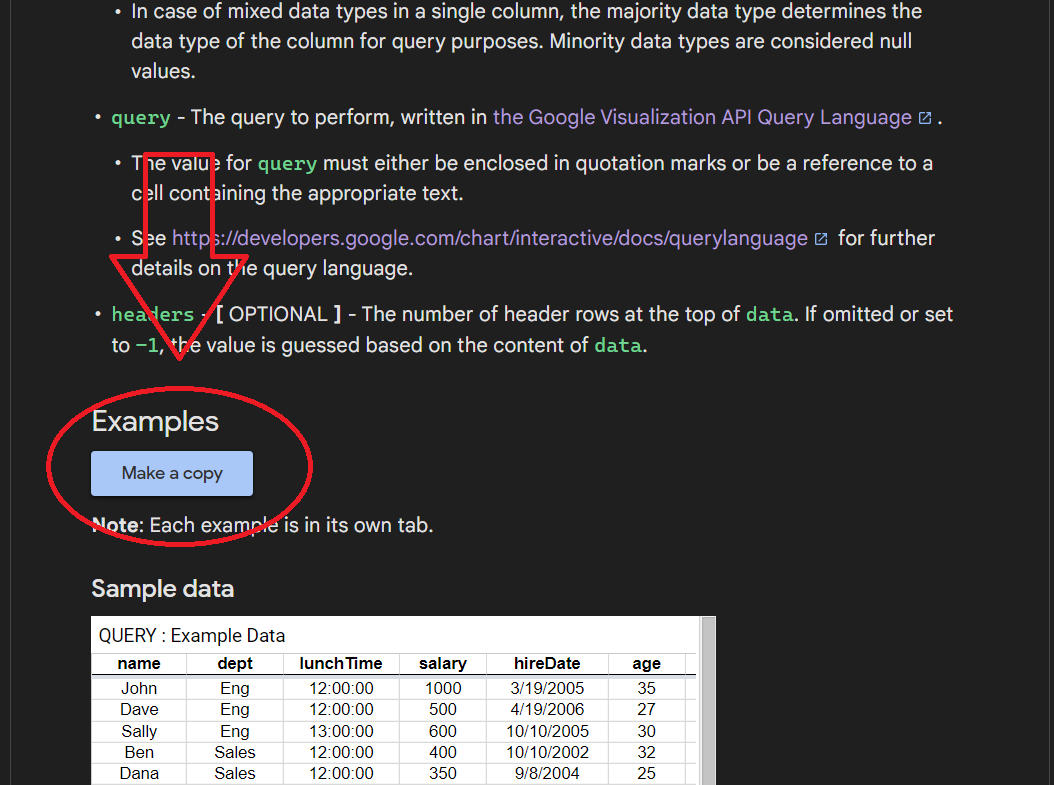
I referenced this article from the QUERY function page on Google Support to learn, and it has a Google Sheet you can copy with a bunch of examples in it. Super helpful.
My Example Spreadsheet
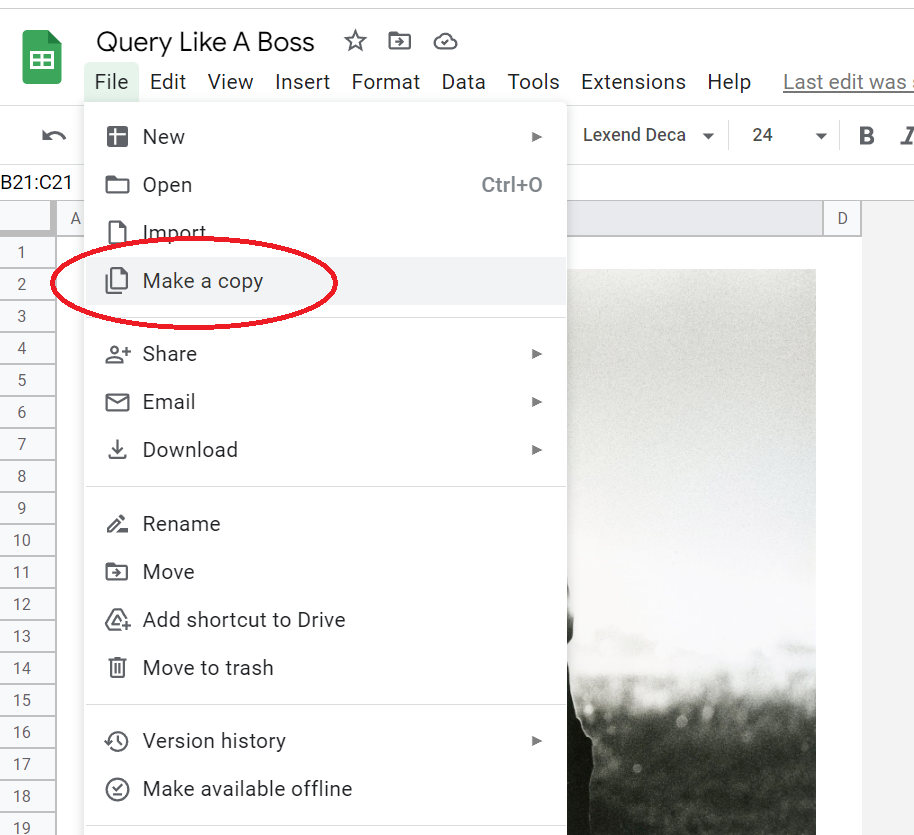
Here is the sheet I built for this article. You are free to make a copy of it and use yourself.
Thanks for Reading!
I write about web design and development from a solopreneur's perspective at https://blog.eamonncottrell.com/ and you can find me on Twitter: https://twitter.com/EamonnCottrell
Have a great one! 🎉

About the author
- I'm an AI automations and strategy educator on YouTube. I also review products. I love ultrarunning. I'm the father of 4 kiddos.
Comments
Join the discussionNo comments yet. Be the first to comment.